The web app
A visual builder over the same engine as the command line. You build an automation as a short flow of steps, test it on sample data, and nothing runs until you approve it. Try it now, with no install: opslens.devops-monk.com/app. Run it on your own machine with opslens serve.
The four areas
| Tab | What it is for |
|---|---|
| Templates | A gallery of ready-made automations, a box to describe what you want, and "Start from scratch" |
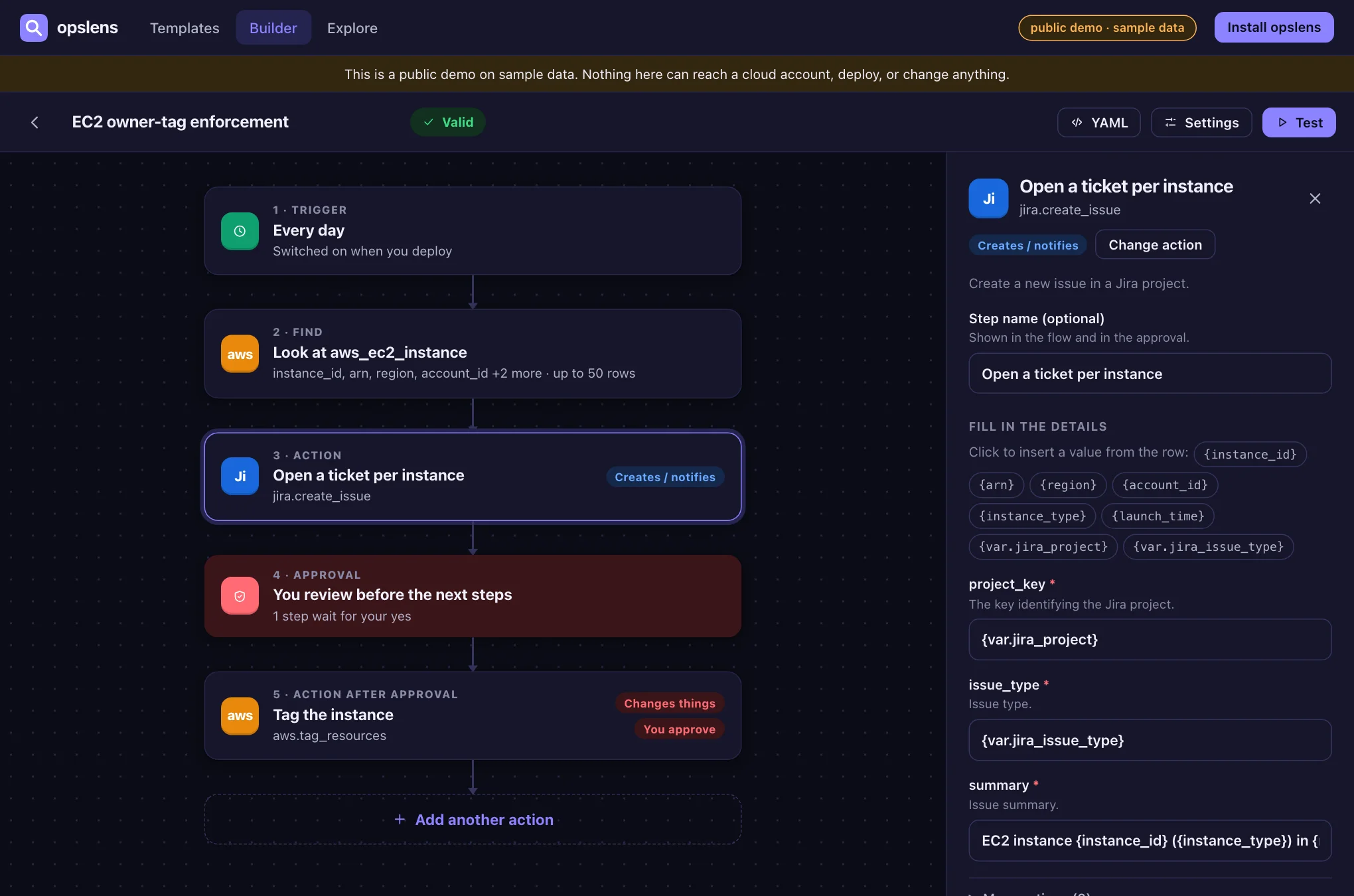
| Builder | The flow: trigger, find, actions, and the approval in between. Click a step to edit it |
| Explore | Search every table and action in plain words |
| My automations | (Local app only.) Saved automations: deploy, run, approve, read the audit log |
Templates
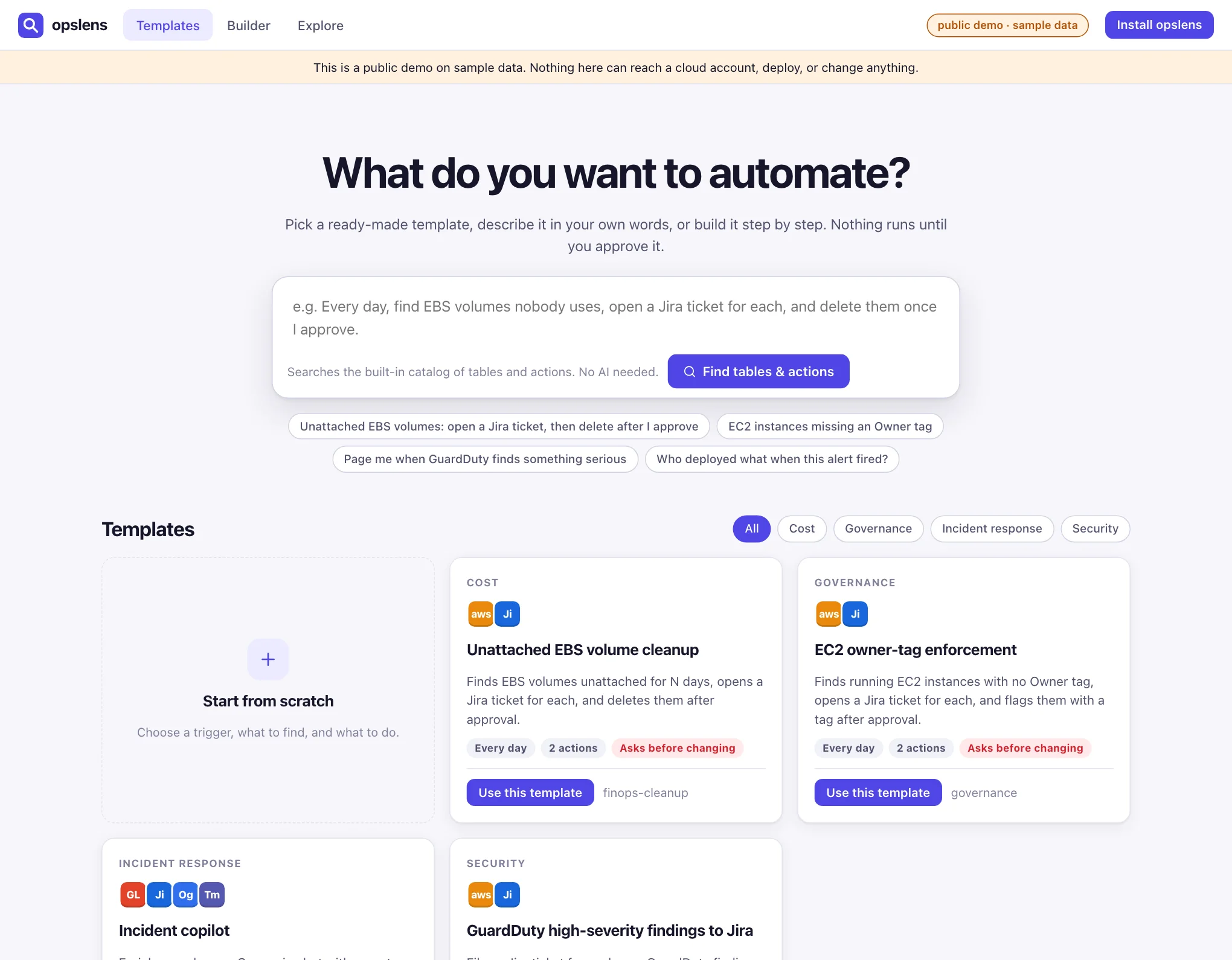
Each template card shows the services it touches, when it runs, how many actions it has, and whether it asks before changing anything. Use this template opens it in the builder, ready to test. The box on top is for describing what you want in your own words: with an AI provider configured it drafts the automation for you; without one it searches the catalogs, so it is useful either way.
The flow
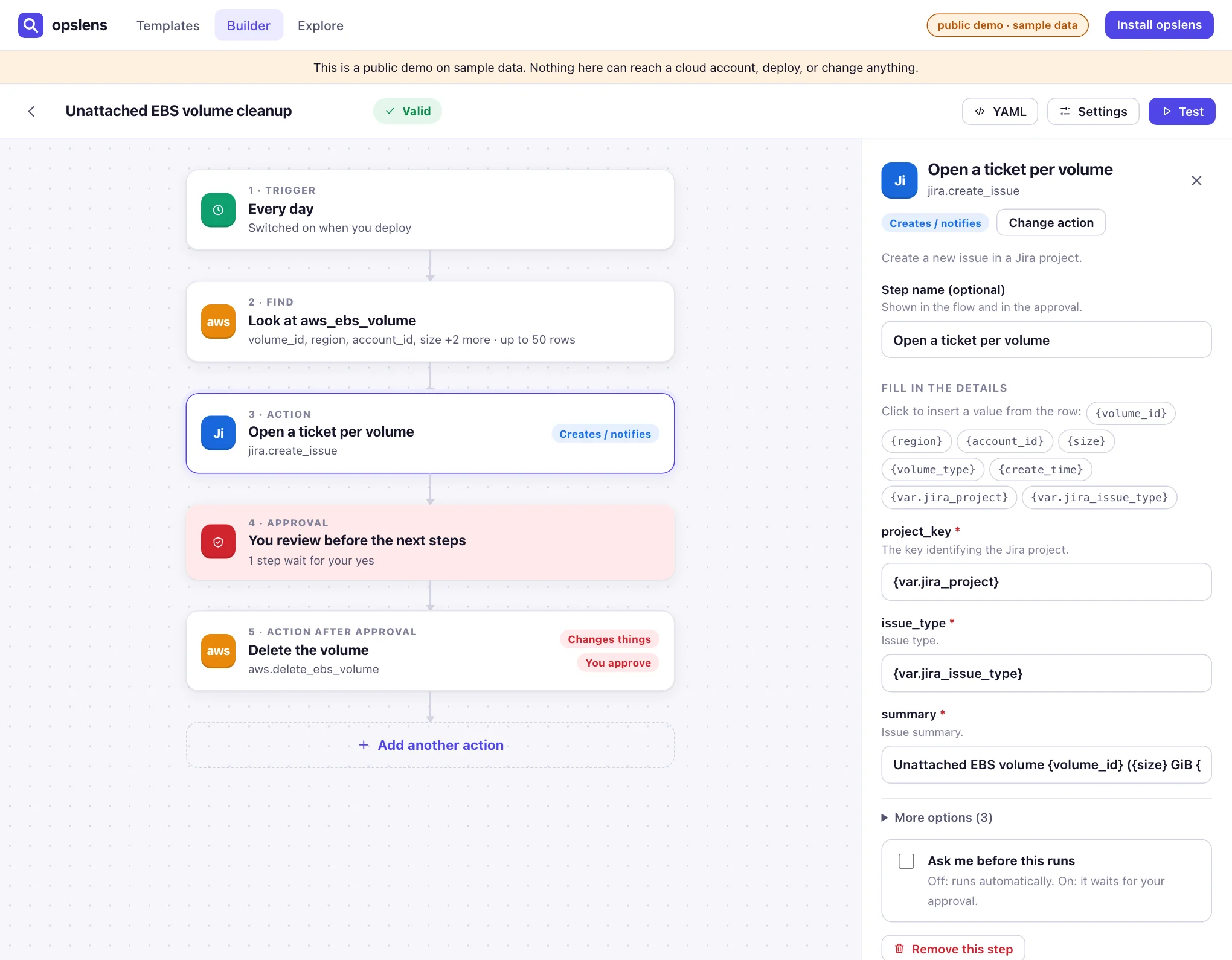
An automation is a vertical flow, read top to bottom:
- Trigger. Run on demand, or on a schedule (every 15 minutes up to weekly, or a cron expression). Schedules ship switched off until you deploy.
- Find. A read-only query over Steampipe tables. The columns it returns become values you can use in the actions.
- Actions. What to do for each row found: open a Jira ticket, post to Teams, tag an instance, delete a volume. Add as many as you need.
- Approval. Appears automatically before any step marked You approve. Everything after it waits for a person to say yes.
Steps that have a problem show a red dot, and the status pill next to the title lists every issue; click one to jump to the step. The panel on the right explains the whole flow in plain English when no step is selected, along with the spec hash that a deploy will be tied to.
Editing a step
Click a step and the panel on the right opens.
Trigger: choose on demand or a schedule.
Find: write the query, or search for a table and start from its columns.
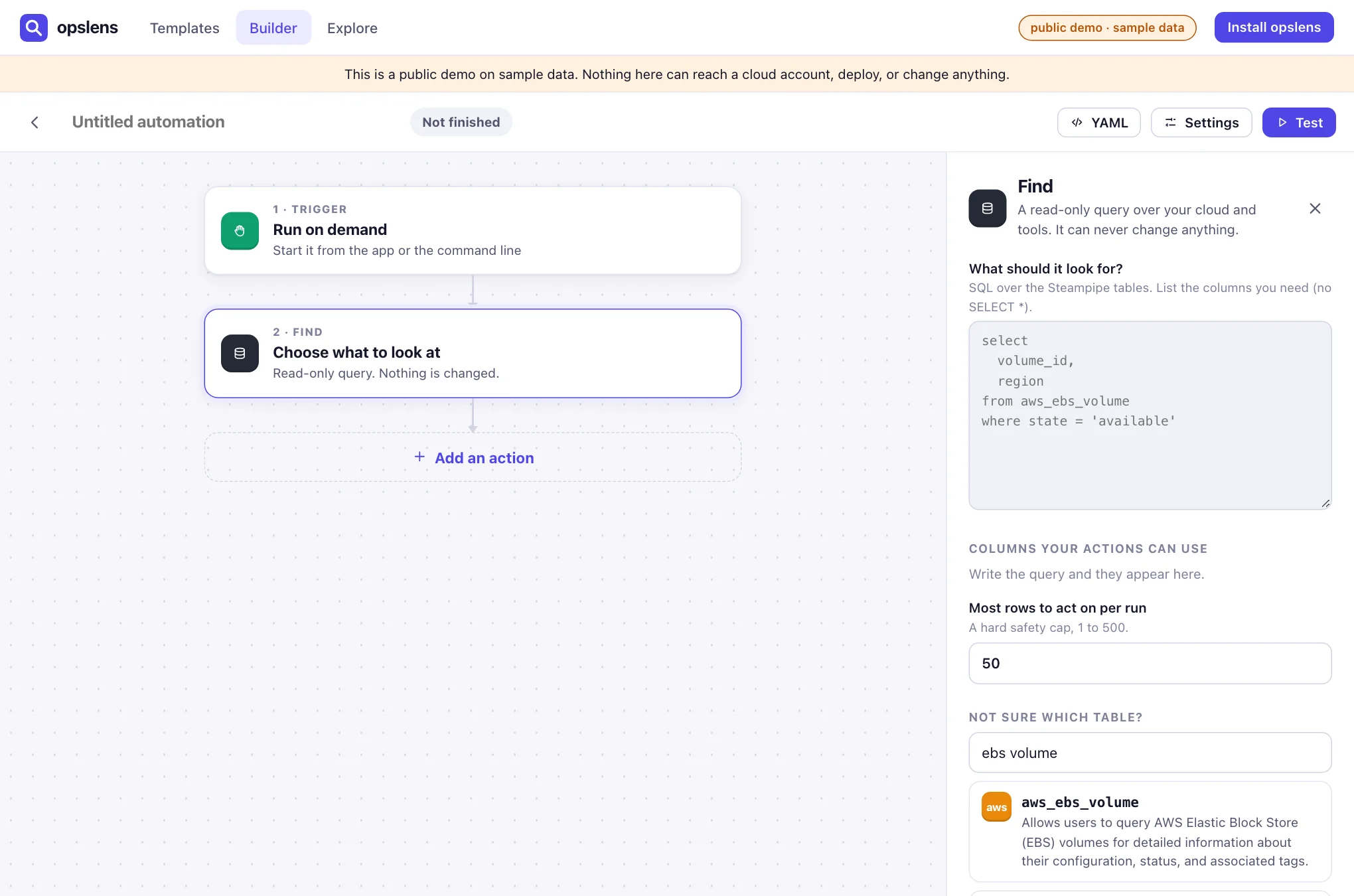
The query is checked as you type. It must be a single SELECT over catalogued tables and must list its columns (no SELECT *), so every {placeholder} in your actions can be checked against a real column. Most rows to act on per run is a hard safety cap.
Actions: search the catalog for what you want to happen. By default the picker shows the five supported services; tick Include other services to search the whole library (Slack, ClickUp and more).
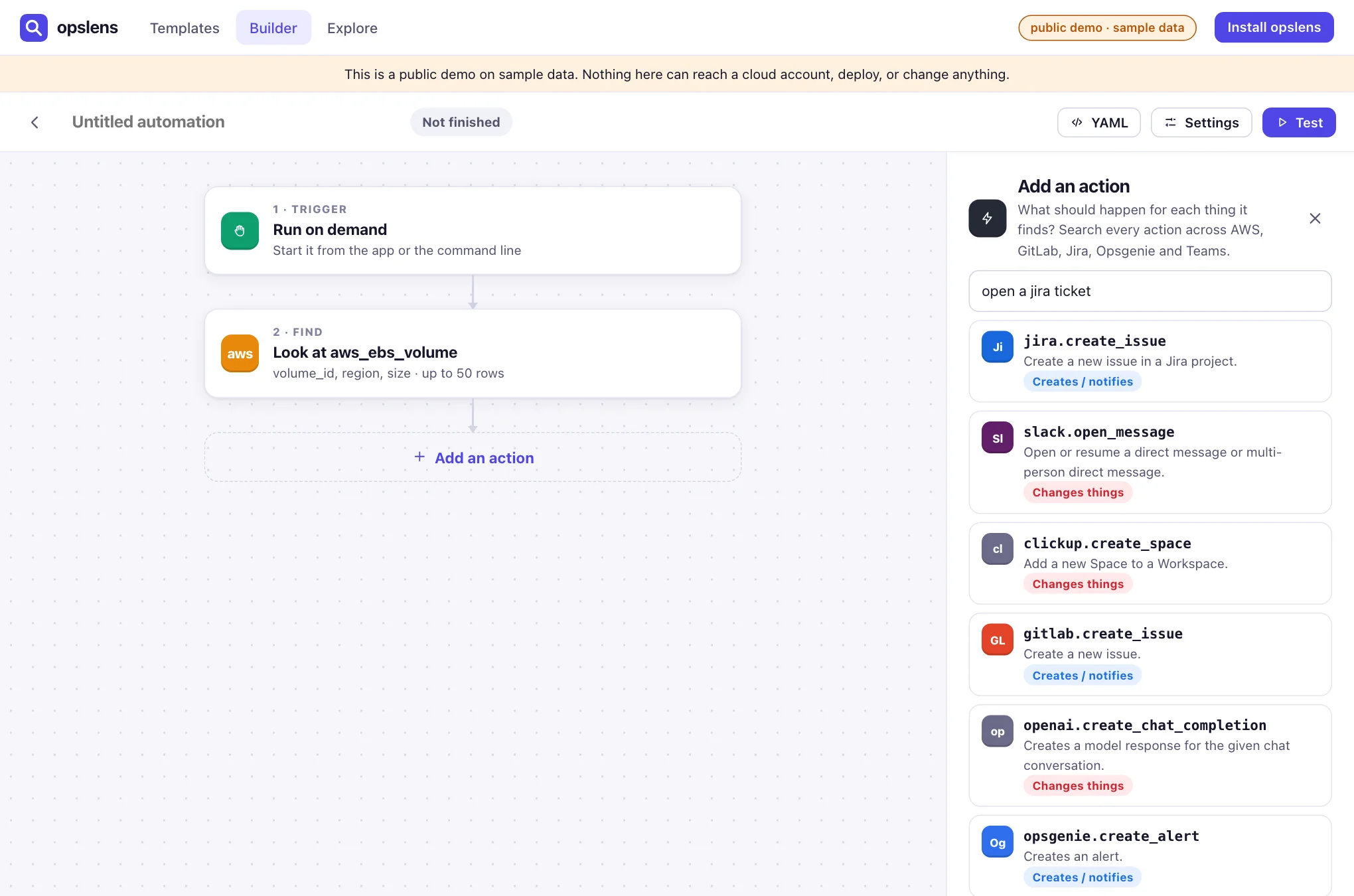
Fill in the details. Click a chip such as {volume_id} to insert a value from the row into the field you are editing, or {var.jira_project} for a variable. Fields that match a column name are filled in for you.
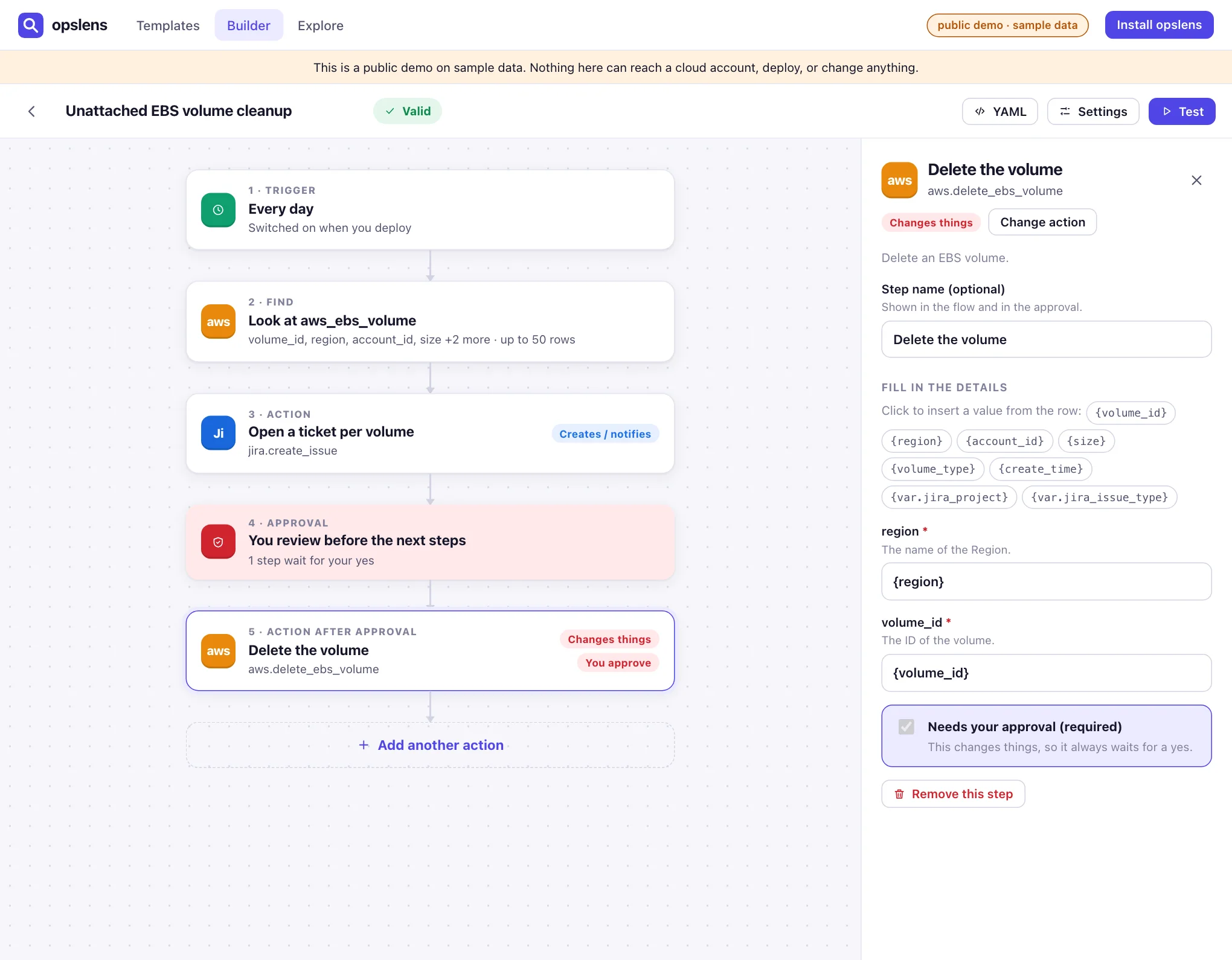
Approval is not optional for changes. If an action changes a resource (deletes a volume, tags an instance), its approval switch is on and locked. Creating a ticket or posting a message is additive, so you choose whether it asks first.
Test, see everything, change nothing
Press Test. opslens runs the read-only query on sample data (or on live data with Test on live data in the local app), then shows every row and the exact arguments each action would send.
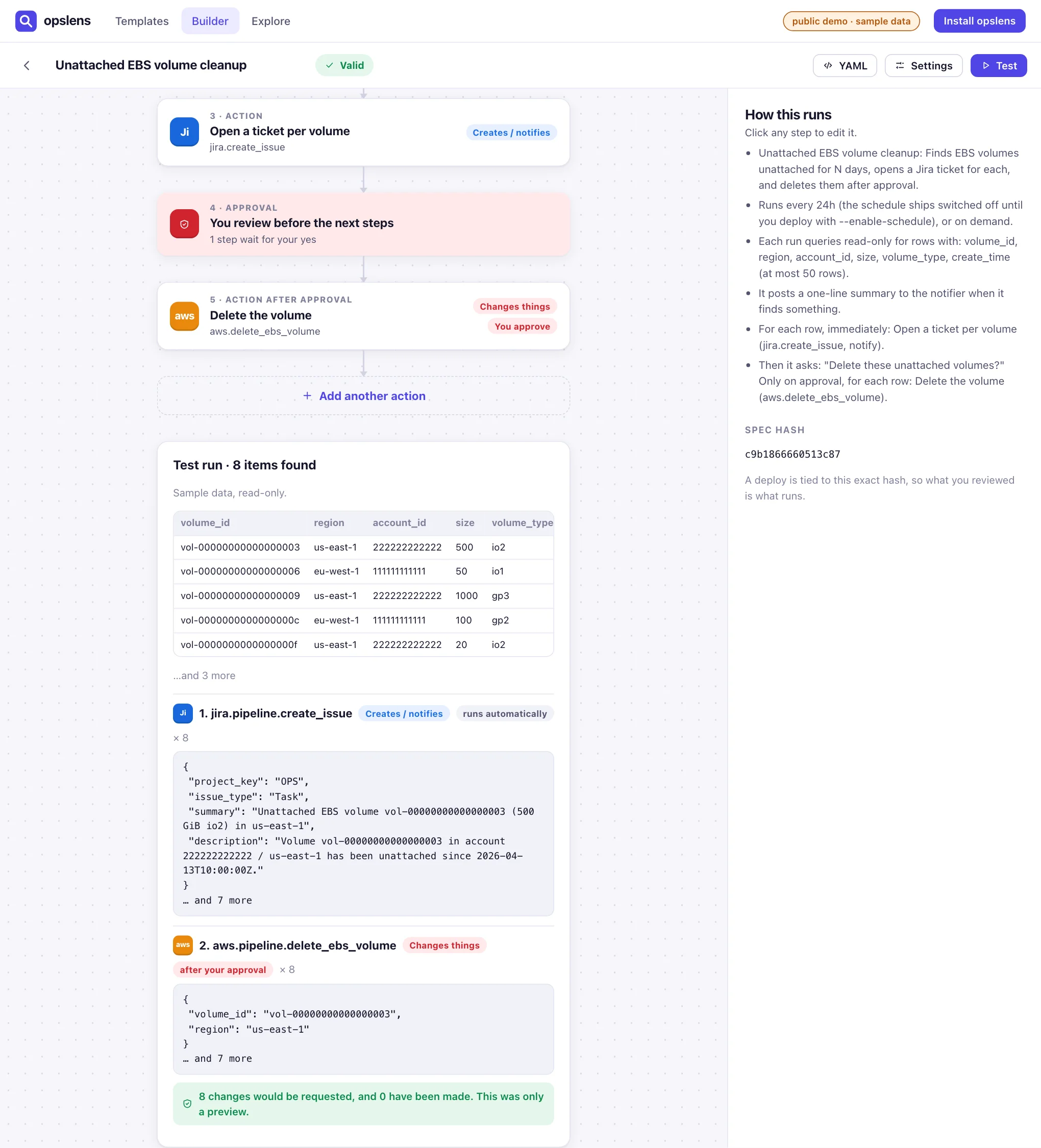
It always ends with the line that matters: how many changes would be requested and that 0 have been made.
YAML, always available
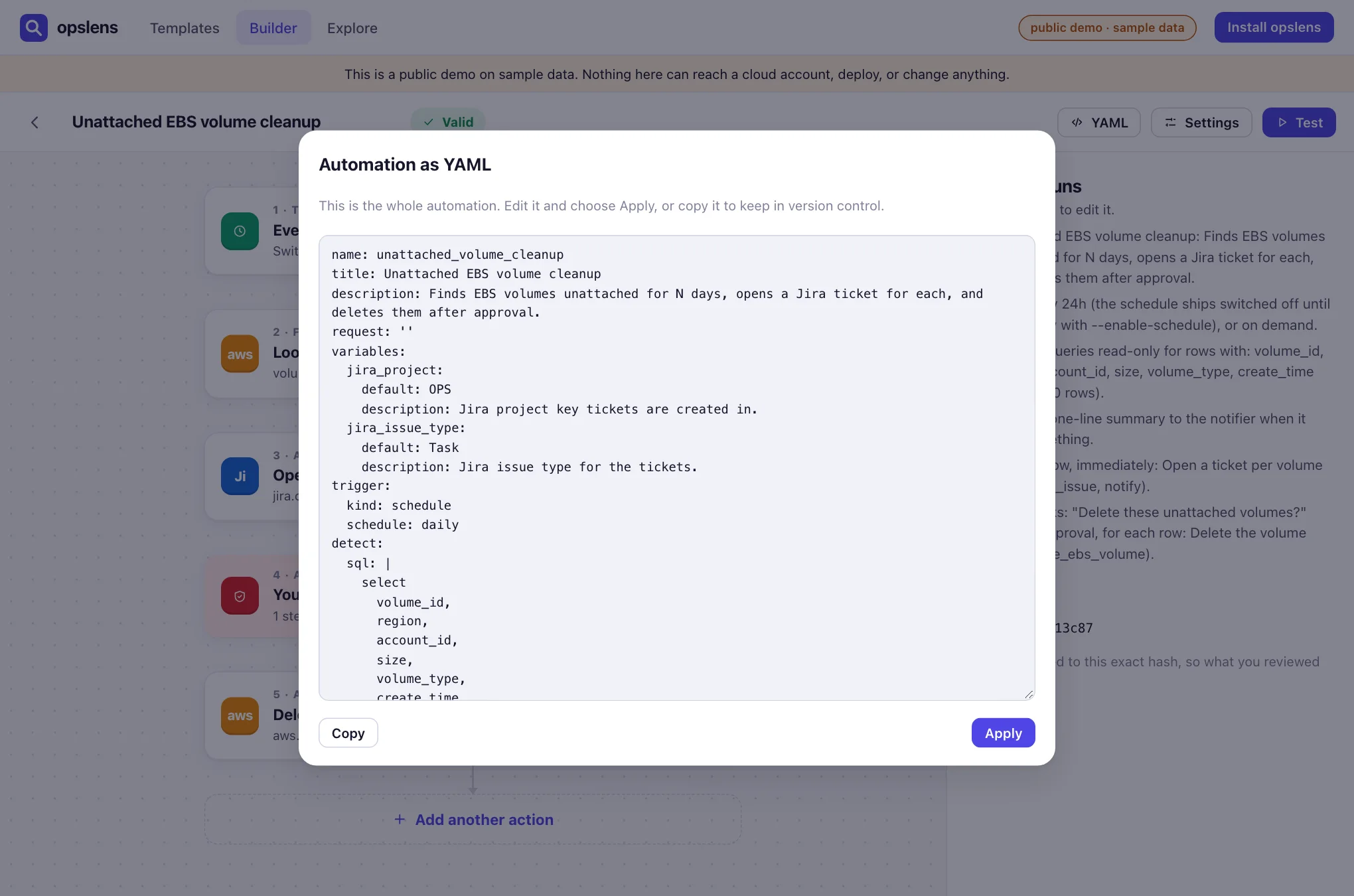
YAML shows the whole automation as the spec file. Edit it and press Apply, or copy it into version control. The builder and the file are two views of the same thing.
Explore
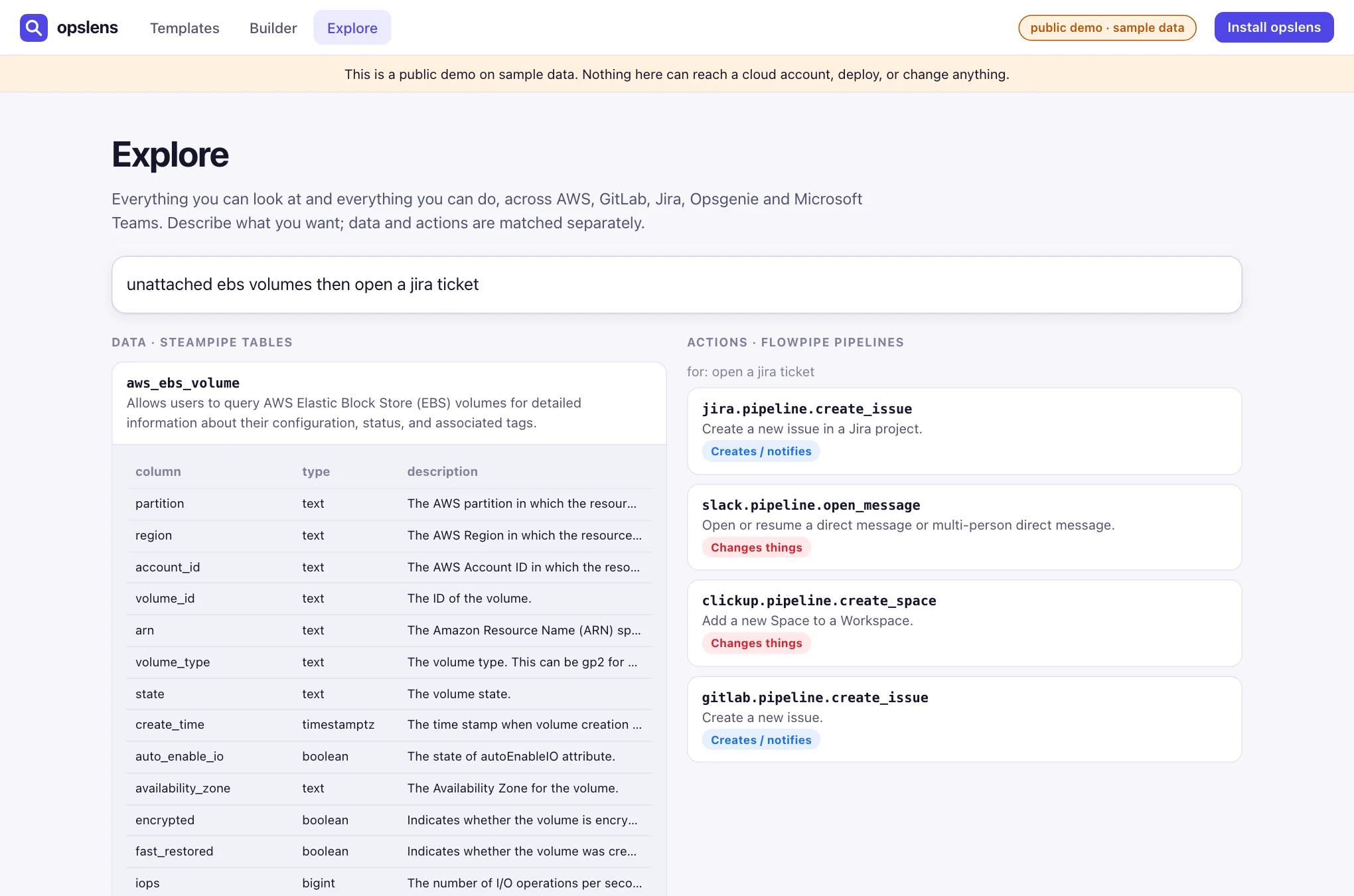
Describe what you want and Explore matches the data (Steampipe tables) and the actions (Flowpipe pipelines) separately, with columns, parameters, and whether each action reads, notifies, or changes things. Start a query from this table and Add as an action carry what you found straight into the builder.
My automations (local app)
Save puts the automation in your workspace folder. From My automations you can open it again in the builder, Deploy it (you tick that you reviewed the exact spec hash first), Run now, answer a waiting approval, Stop it, and read the audit log of every deploy, run and approval. See Deploy, approve and audit.
Dark mode and small screens
The app follows your system's light or dark setting.
On a phone the step editor opens as a sheet from the bottom.
Keyboard and accessibility
Every step is a real button with a pressed state, forms use real labels, and the whole app works from the keyboard. All text from your data is inserted as plain text, never as HTML.
Local and demo modes
opslens serve (local) |
opslens serve --mode demo (public) |
|
|---|---|---|
| Data | Your accounts, or sample data | Sample data only |
| Save, deploy, run, approve | Yes | No |
| AI drafting | If you configure a provider | No |
| Who can reach it | Your machine only (loopback) | Anyone you give the URL |
| Protections | Host allow-list, per-session token | Input limits, rate limiting, no writes |
See Data and privacy for what each mode can and cannot do.